

WordPress is great, but one annoying thing is dealing with lots of spam comments. No matter what kind of [blog] you run, you’ll need a way to stop spam sooner or later.
Luckily, there are plenty of plugins, tips, and settings that can help cut down spam by 99%. With these tools, you can spend less time managing spam and more time [growing your blog] and business.
Too much spam can hurt your site. It can lower your search engine ranking, make it harder to have real conversations, and even cause [security problems]. That’s why it’s important to stop spam early on.
So, how can you stop spam comments on WordPress?”
Like to watch the video version?
Some Ways to Stop WordPress Spam Comments with Built-In Features
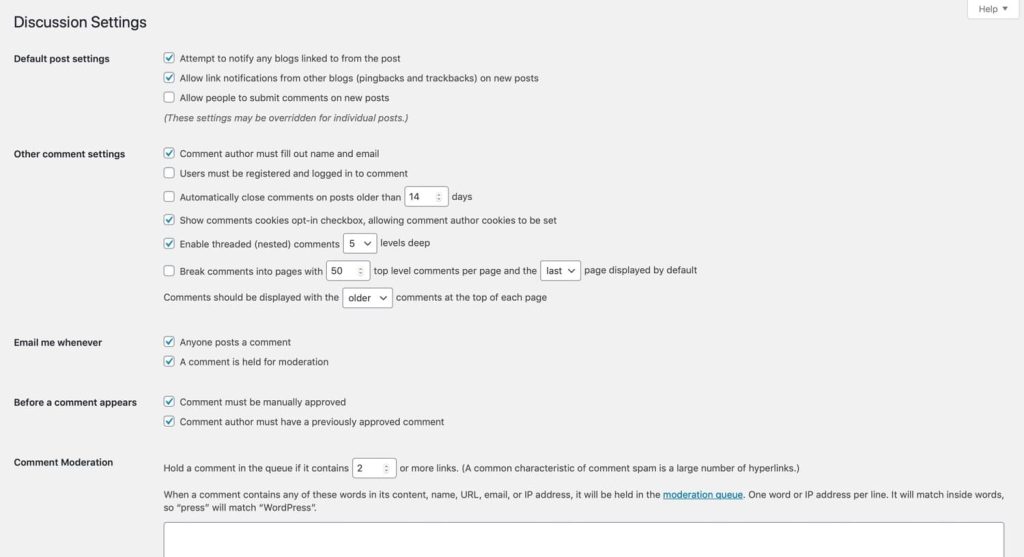
The first step to fighting WordPress comment spam is to check the discussion settings. You can find them by going to Settings > Discussion.
-
Turn off comments completely -
Stop anonymous comments -
Enable comment moderation -
Allow comments only from logged-in users -
Create a blacklist of banned words -
Limit or block links in comments -
Turn off comments for specific posts -
You can also turn off comments for individual posts while editing them.
Let’s take a look at each of these methods.
1. Turn off comments completely
The easiest way to stop spam is by turning off comments completely. If your business doesn’t need or want comments, you can disable them to avoid spam.
To do this, go to Settings > Discussion, and under the Default post settings, just uncheck the box that says ‘Allow people to post comments on new articles.’ This way, no one will be able to leave comments on your site.
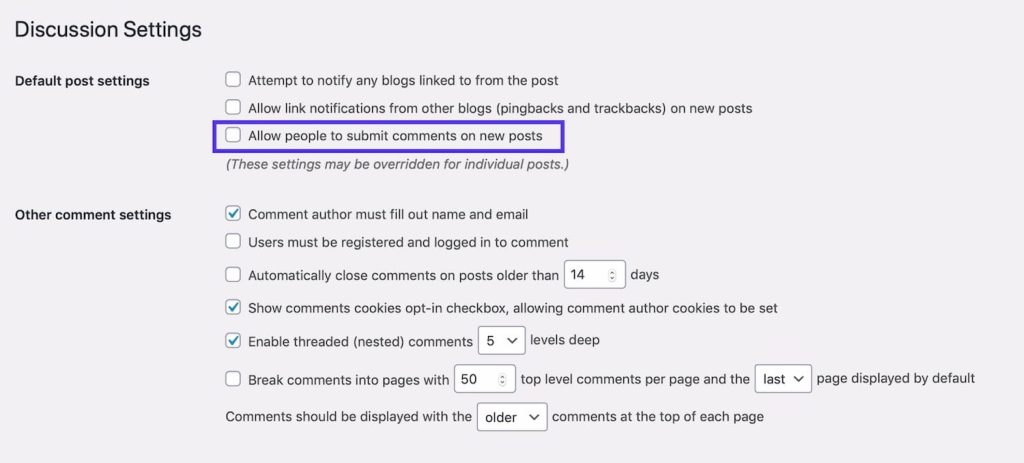
This will stop comments on all new posts, and you can also disable pingbacks if needed.
Keep in mind that this won’t turn off comments on posts you’ve already published. To disable comments on those, you’ll need to do it individually for each post, which we’ll explain soon.
After making your changes, scroll down and click the “Save Changes” button. This will turn off all future comments.
2. Stop anonymous comments
Another way to reduce spam is by turning off anonymous comments. Normally, WordPress asks visitors for four details: comment, name, email, and website.
If you allow anonymous comments, visitors don’t need to provide this info, which makes it easier for spambots to flood your site.

To stop this, go to Settings > Discussion and check the box that says “Comment author must fill out name and email.” This makes it harder for bots to leave spam comments and may even discourage trolls from posting harmful messages, although it won’t stop all spam.
3. Enable comment moderation
Another way to fight WordPress comment spam is by using built-in moderation tools.
Manually approve comments: This lets you review every comment before it shows up on your site, ensuring only high-quality comments get posted. It won’t stop spam, but it gives you control.
Moderation queue: You can set rules to hold comments for review. For example, you can automatically hold any comment with a certain number of links or specific words, names, or IP addresses.
To set this up, go to the “Email me whenever” and “Before a comment appears” sections in Settings > Discussion:
- To approve every comment manually, check “Comment must be manually approved.
- To approve only new commenters, check “Comment author must have a previously approved comment.
- To get notified when a comment is waiting for moderation, check “Email me whenever a comment is held for moderation.” This helps you quickly review and approve or delete it.

You’ll also need to consider the settings for [user registration] – will you allow anyone to register or will there be a moderation process for that? You can access registration settings by going to Settings > General.
4. Limit or Block Links in Comments
Spam comments often include links because spammers want to drive traffic to their websites. You can either block comments with links entirely or limit the number of links allowed.
In the “Comment Moderation” section, you can choose how many links a comment can have before it’s held for review. For example, if you allow 1 link, set the number to 2. If you want to block all links, set it to 1.
If you prefer, you can set a higher number to allow more links. Any comments that exceed the limit will be sent for moderation before being published.

5. Turn Off Comments for Specific Posts
If you’ve already published posts or just want to disable comments on certain posts, you can do this in the post editing screen.
This is helpful if a post covers a sensitive topic or gets a lot of spam.
Here’s how to do it:
- Go to Posts, find the post you want, and click its title to edit.
- On the right side, open the Discussion tab.
- Uncheck Allow comments to turn off comments for that post.
Finally, click Update to save your changes, and comments will be disabled for that post.
Stop WordPress Spam Comments with a Plugin
If you want a stronger way to stop WordPress comment spam, you can use plugins to handle it for you. This way, you can keep comments on your site without having to deal with spam notifications or moderation.
Here’s a plugin you can try:
Akismet
Akismet comes with every WordPress installation and is developed by Automatic. It checks data from millions of websites in real-time to block spam on your site.
It’s one of the top WordPress plugins, free for personal use, and starts at $5/month for business sites.
Akismet has over 5 million active installs and holds a 5-star rating. You can find it in the WordPress repository or search for it in your dashboard under Plugins > Add New (it’s usually pre-installed unless it’s been removed).
Akismet has built up years of spam rules and filters, making it highly effective at showing you only the good comments and filtering out the bad ones.
If you’re running a commercial site, you’ll need to purchase a license, but hobby bloggers can use it for free. It’s a powerful tool that can block more than 99% of spam comments on your WordPress site.
Disable Comments
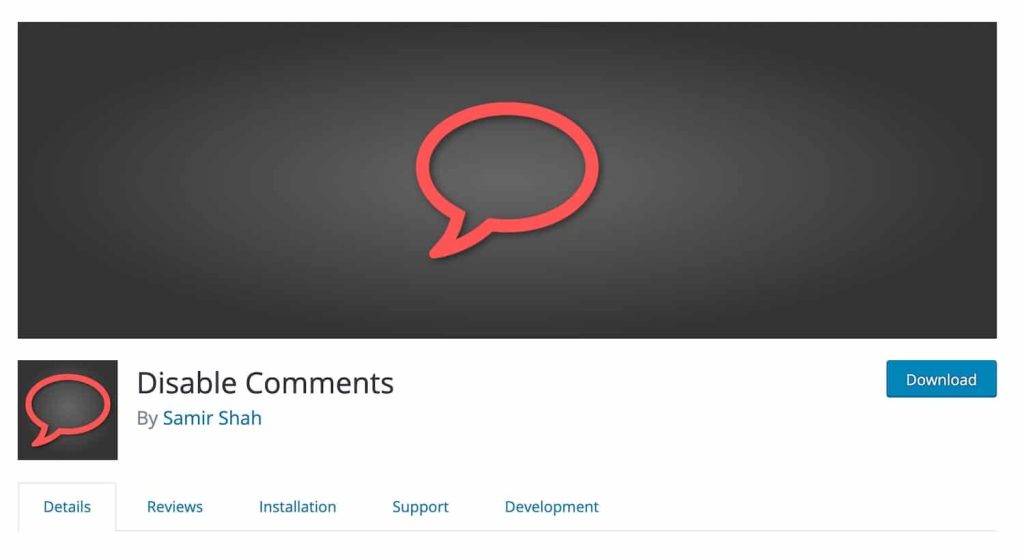
Disable Comments is a free plugin that allows you to turn off comments across your entire site or for specific post types. It’s especially handy if you want to disable comments on a WordPress site with existing content without having to edit each post individually.
How to Remove Comment Author Links with a Plugin
To remove the author links from comments on your WordPress site, you can use a custom plugin. This can help enhance comment quality by discouraging spammy comments aimed at boosting author links.
Here’s how to create your own plugin for this:
Create a new file in your wp-content/plugins directory. Name it something like lorepearl-comment-author-link.php.
Add the following code to your plugin file:
PHP
PHP
<?php
/*
Plugin Name: LorePearl Comment Author Link Remover
Description: Removes author links from comments.
Version: 1.0
Author: Your Name
*/
function remove_comment_author_link($link) {
return $link; // This effectively removes the author link.
}
add_filter(‘get_comment_author_link’, ‘remove_comment_author_link’);
?>
Save the file and activate your plugin from the WordPress dashboard under Plugins.
This simple plugin will remove the author links from comments, encouraging genuine engagement on your blog.
Stop WordPress Spam Comments with a Captcha
Another effective way to tackle comment spam is by using a CAPTCHA. This involves adding a form or question to ensure that the visitor is a human, not a bot. Many free plugins can help you add this feature to your WordPress site.
While CAPTCHAs can sometimes be a hassle for users—especially those that ask you to identify images with certain objects—many sites now use simpler options like a “I am not a robot” checkbox. This type is easy for people but difficult for bots to bypass.
There are numerous great plugins available for integrating CAPTCHA into your WordPress site, and most of them are free to use.
Google Captcha (reCAPTCHA) by BestWebSoft

We really like Google’s reCAPTCHA for its simplicity and user-friendliness. Unlike other CAPTCHAs that ask confusing questions or show hard-to-read letters, Google’s version is clean and easy to use. It’s designed to enhance user experience without causing frustration.
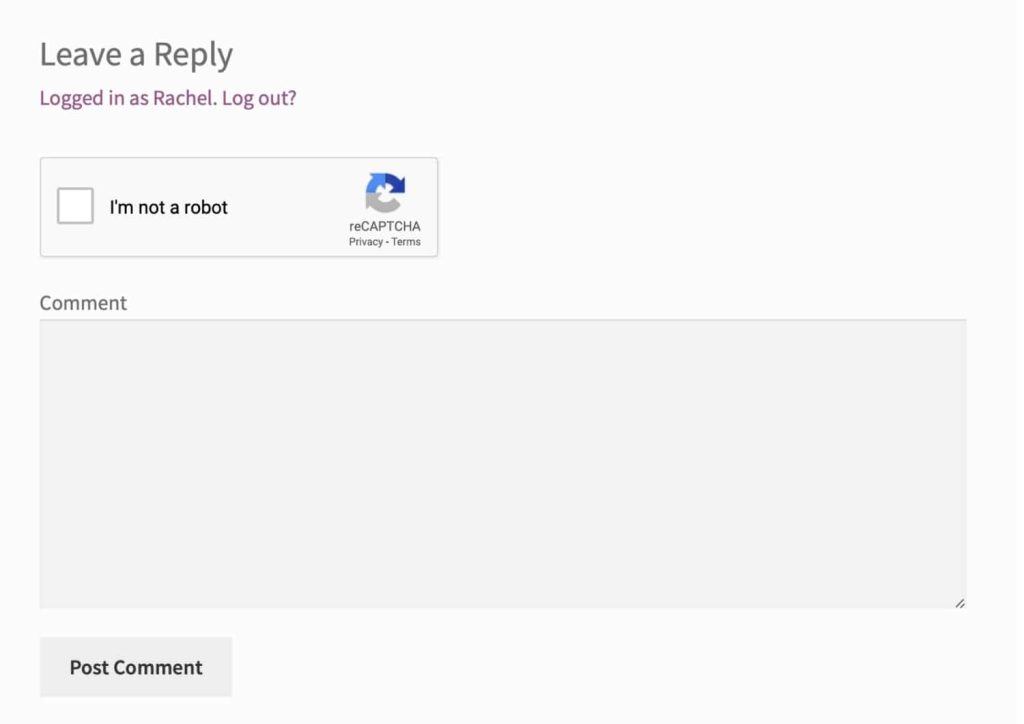
To add reCAPTCHA to your WordPress site, you can use the “Google Captcha (reCAPTCHA) by BestWebSoft” plugin. This plugin offers a straightforward solution by simply asking users to tick a checkbox that says “I’m not a robot.” This checkbox can only be ticked manually, which helps stop bots.

Here’s how to set it up:
- Register your site with Google’s reCAPTCHA API and choose either reCAPTCHA v2 (checkbox) or reCAPTCHA v3 (runs in the background).
- Copy the site key and secret key provided by Google.
Paste these keys into the plugin settings on your WordPress site. - Select “Comments Form” in the “Enable ReCAPTCHA for” section and click “Save Changes.”

With this setup, users will need to check the box before leaving a comment
Additional features of the plugin include:
Works on registration, login, and password reset forms.
Option to hide CAPTCHA for whitelisted IPs.
Multiple themes available.
Supports multilingual and RTL (right-to-left) languages.
Stop WordPress Spam Comments with a Web Application Firewall
Using a [web application firewall {https://kinsta.com/blog/what-is-a-firewall/}] (WAF) like [Sucuri or Cloudflare {https://kinsta.com/blog/sucuri-vs-wordfence/}] can significantly reduce the amount of spam your WordPress site gets.
Here’s why:
Blocks Spam and Bots: A WAF sits between your WordPress host and your website, filtering out harmful traffic and bots before they reach your site.
Country Blocking: It allows you to block traffic from specific countries with just a click.
Saves Bandwidth: By reducing unwanted traffic, a WAF helps lower your bandwidth usage, which can cut down your web hosting costs.
In short, a WAF helps protect your site from spam and other threats while saving you money on hosting.
Summary
While WordPress comes with a built-in commenting system, it might not always be enough to stop spam effectively.
To keep your site secure from comment spam, consider these steps:
Configure WordPress: Adjust settings to block or moderate comments automatically.
Use Plugins: Install third-party plugins designed to handle spam and manage comments.
Create a Custom Plugin: Build your own plugin to address spam specifically for your site.
By implementing one or more of these methods, you’ll enhance your site’s security, credibility, and performance.